
New Year’s Resolution #8
Find great open-source alternatives and use them.
Back in 2025, the studio decided that the Zoom Corporation already had enough money and didn’t need ours. So today, we’re using an open source application that’s been a great replacement. That software is called Jitsi.

This was a good reminder that being open source doesn’t necessarily mean it’s free: Turns out: it takes expertise + time to run a server to handle the video transmission. We pay a modest cost to a non-profit provider to run that. Still, this has been far more affordable than The Big Guy on the market, and we’re not passing on yet more data to G**gle Corp.
The best part:
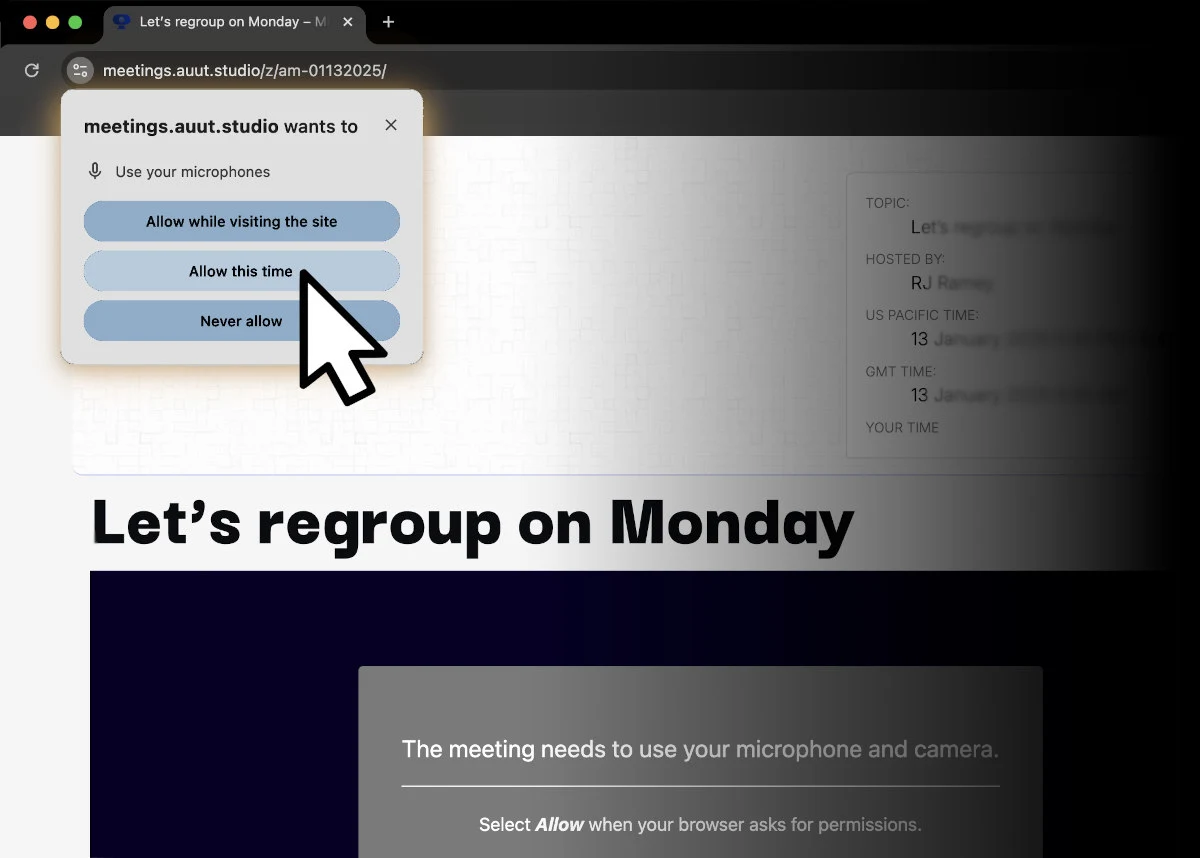
You don’t need to download anything or learn anything new. Video calls here use the capabilities your browser already has.
The only trick to joining is watch for your browser’s pop-up question. It needs your permission to utilize the mic & camera for this call.
The interface
works nearly* the same as Zoom.
*with one exception: to send a 1:1 private message is different.
1) Welcome Screen before you join:
Type in your name —and maybe the meeting Password, if you were given one— then click Join Meeting.
Alternatively, before you join, you can use the icons underneath the blue button to setup first:
The icons for mic and camera toggle those On/Off before joining.
The photo icon lets you set a Virtual Background before joining.
The gear icon opens up all the settings. Such as to change your microphone device, or its volume level, …or anything else you would expect to control, if this were Zoom.
2) Toolbar controls in the meeting:
Here’s what each icon signifies on the meeting’s toolbar. (In the real interface, you can always hover your cursor for a quick reminder.)








3) The Chat window:
(info coming soon)
. . .
4) …but to send a 1:1 message:
Okay, yah. This feature acts different than in Zoom. If someone messages you privately, you cannot reply back with the same privacy if you merely type into the general Chat window.
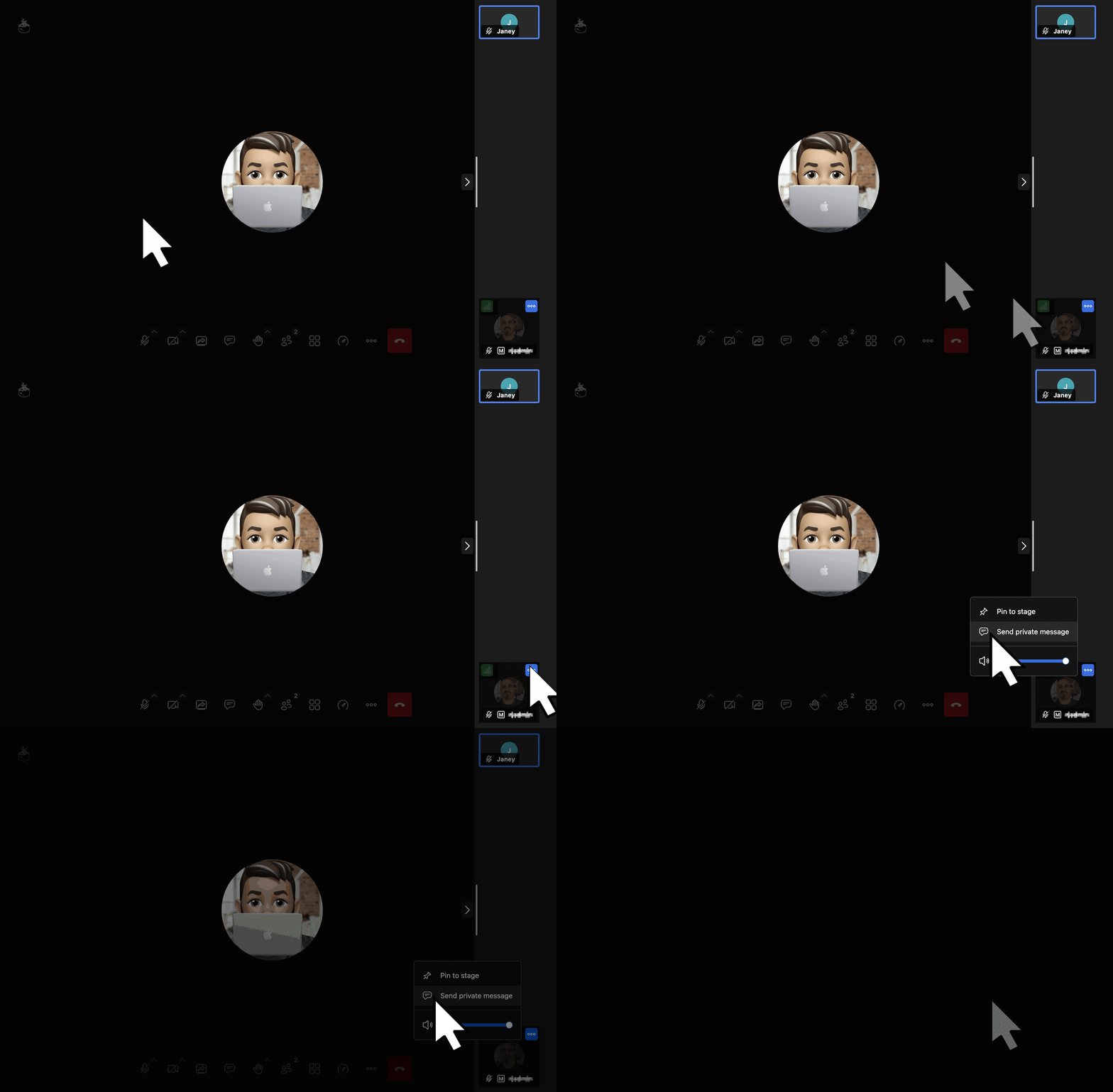
Every time you want to chat privately, you HAVE to originate the message from the right-side panel of Participants.
Find the right person in the list › click the three-dots icon for a menu of more choices › then choose Send private message.

Quick animated demo:
Thanks for reading! Can’t wait to meet you soon.